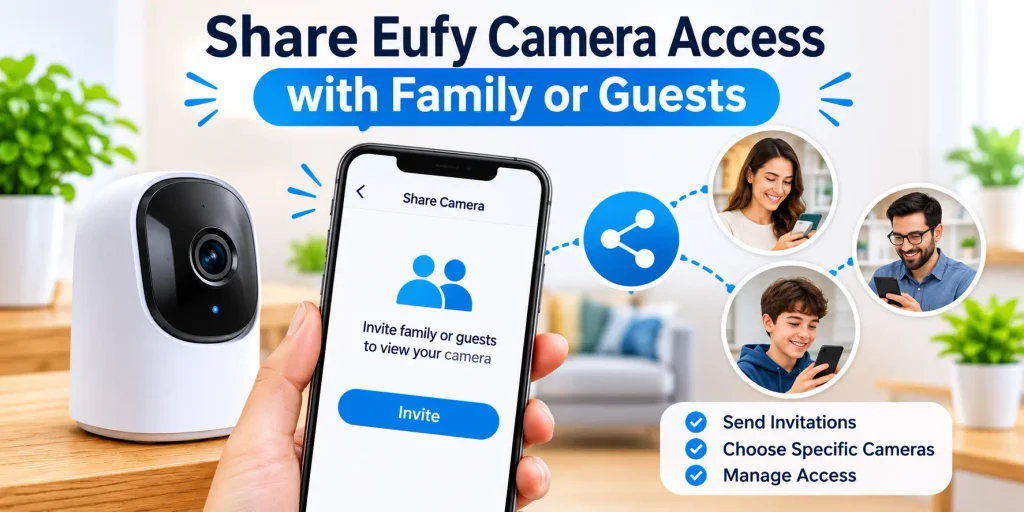
You can share your Eufy camera with family members or guests through the Anker Eufy app. The camera owner opens the app, selects Share Devices or Family & Guests, invites the other person’s Eufy account using their registered email address and chooses Guest or Admin permissions. The recipient then opens their app and accepts the invitation.
Eufy security cameras help you monitor your home, office, entrance, driveway, and other important areas. While the camera owner can usually access the live feed and recordings through the Anker Eufy app, other family members may also need access.
For example, you may want your spouse to check the front-door camera, allow a family member to monitor the house while you are travelling, or give a trusted guest temporary access to a shared security camera.
Fortunately, Eufy provides a device-sharing feature that lets you invite other users through their own Eufy accounts. You can choose between different access levels and decide whether to share one camera or multiple eligible devices associated with your home.
In this guide, you will learn how to share Eufy camera access with family or guests, understand guest and admin permissions, accept an invitation, manage shared accounts, and troubleshoot common sharing problems.
Important: The names and locations of app menus can vary by app version, camera model, and region. Follow the options displayed in your current Anker Eufy app.
What Do You Need Before Sharing Your Eufy Camera?
Before inviting someone, make sure the camera is already configured and working under your owner account. You should also ask the person receiving access to install the Anker Eufy app and register their own account.
Here is what you need:
| Requirement | What to prepare | Why it matters |
| Eufy camera | Camera already added to the owner account | You can only share a configured device that is after eufy camera setup |
| Owner account | Access to the account that manages the camera | The owner initiates the invitation. |
| Recipient account | A separate Eufy account | The recipient needs an account to accept access |
| Anker Eufy app | Installed on both smartphones | Used to send and accept invitations |
| Recipient email | Correct email associated with their Eufy account | Prevents invitation errors |
| Internet connection | Stable connection for both users | Helps invitations and device access work correctly |
Tip: Do not share your main account password with family members or guests. Invite them through the official sharing feature so they can use their own accounts.
How Do I Share Eufy Camera Access with Family or Guests?
The following steps describe the general sharing process for supported Eufy cameras.
Step 1 — Ask the Recipient to Install the Anker Eufy App
First, ask the family member or guest to install the official Anker Eufy app on their smartphone or tablet. They can create a new Eufy account or sign in using an existing account.
Make sure the recipient completes registration before you send the invitation. The email address used for the invitation should match the email associated with their Eufy account.
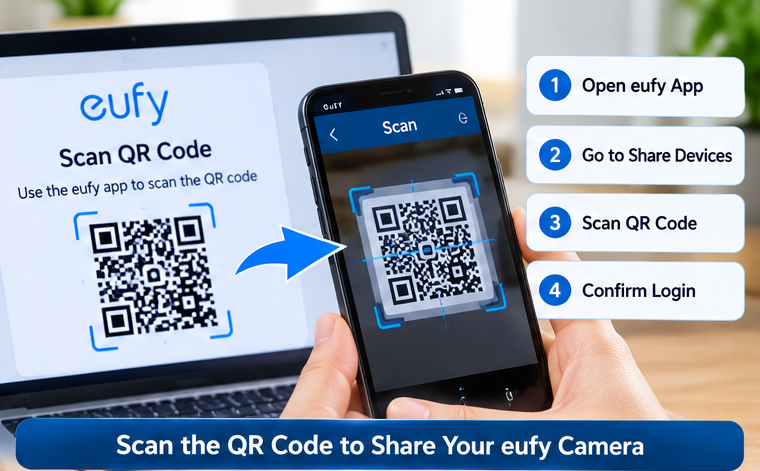
Step 2 — Open the Eufy App on the Owner’s Phone
Open the Anker Eufy app on the smartphone where your cameras are already configured. Sign in using the primary account that owns or manages the camera. Look for the menu icon or your profile avatar. Depending on your app version, you may find the sharing option under:
Menu → Avatar/Profile → Share Devices
In some versions, the option may appear as Family & Guests in the side menu. If you cannot find the sharing option, check that your app is updated and consult the Eufy support instructions for your model.
If your eufy camera not working then check our blog.
Step 3 — Choose Share Home or Share Device
Depending on the app version, Eufy may provide two sharing methods:
- Share Home: Use this option when you want to share the eligible devices associated with a home rather than inviting someone to access only one camera.
- Share Device: Choose this option when you want to give someone access to a particular camera or selected device.
For example, you might share the front-door camera with a family member without giving them access to cameras monitoring private areas.
Select the method that matches your privacy requirements.
Step 4 — Select the Invite Option
After choosing Share Home or Share Device, tap Invite. For individual device sharing, the app may ask you to select an access level, choose the associated camera and provide the recipient’s email address.
For home sharing, follow the prompts to select the home and enter the recipient’s account details. Check every selection before sending the invitation.
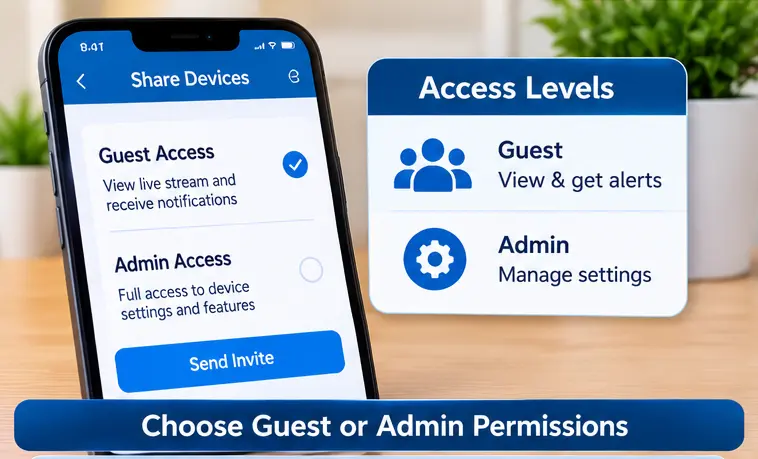
Step 5 — Choose Guest or Admin Permissions
Eufy offers two general access levels for supported sharing configurations: Guest and Admin. Choose Guest when someone only needs routine camera access. Select Admin only when the person genuinely needs broader control over the shared security system.
The available permissions can differ by device and firmware. Review the app’s permission description before confirming.
Step 6 — Enter the Recipient’s Email Address
Enter the email address linked to the recipient’s Eufy account. Check the spelling carefully and make sure there are no accidental spaces before or after the address.
An incorrect email address can prevent the intended person from receiving or accepting the invitation. Tap Send or the confirmation option displayed by the app.
Step 7 — Ask the Recipient to Accept the Invitation
The invited person should open the Anker Eufy app on their smartphone. Ask them to refresh the device list or check the app’s invitation notification. They should see the pending invitation and an option to accept it.
Once the invitation is accepted, the shared camera or home should become available in their app. The recipient can then open the device and use the features permitted by the assigned access level.
What Is the Difference Between Guest and Admin Access?
Guest and Admin permissions are designed for different levels of responsibility. A Guest generally receives access to view and use selected camera features, while an Admin may have additional control over settings, recordings and security functions. The following comparison is based on permissions documented in certain Eufy security system manuals. Exact options can vary by model.
| Feature | Guest access | Admin access |
| View live camera feed | Yes | Yes |
| Speak to visitors through supported cameras | Yes | Yes |
| Manually activate alarms | Supported models | Supported models |
| Take screenshots | Yes | Yes |
| Receive camera notifications | Supported configurations | Supported configurations |
| Play or download recordings | Supported models | Supported models |
| Delete recordingsChange security modes | Generally, not permittedGenerally, not permitted | Supported modelsSupported models |
| Change device settings | Generally, not permitted | Supported models |
| Manage camera operation | Limited | Broader control |
Which option should you choose?
- Guest: Suitable for relatives, trusted visitors or household members who mainly need to view the camera and receive supported alerts.
- Admin: Suitable for a trusted person who needs to manage camera settings or security functions.
Do not assume that every permission is identical across all Eufy cameras. Check the permission screen and your product manual before inviting another user.
Should You Share One Camera or Your Entire Eufy Home?
The choice depends on how many devices the other person needs to access. If you want to share only the front-door camera, individual device sharing is generally more appropriate. If a family member helps manage the entire property, Share Home may be more convenient.
| Sharing method | Best for | Main consideration |
| Share Device | Sharing one selected camera | Limits access to selected devices |
| Share Home | Sharing eligible devices associated with a home | May provide broader access than intended |
| Guest permission | Routine viewing and supported camera features | Limited management permissions |
| Admin permission | Trusted users who help manage security devices | Provides broader control |
Before choosing Share Home, review which cameras and other devices are included. Avoid giving access to cameras in bedrooms, private workspaces or other sensitive areas unless it is genuinely necessary.
How to Manage or Remove Shared Eufy Camera Access
Sharing access does not mean you have to give someone permanent permission. You can review existing invitations and manage shared users through the app.
Check Existing Shared Users
Open the Anker Eufy app and navigate to Share Devices or Family & Guests. In the newer app interface, Eufy also documents a Share Management section under:
Sidebar → Share Devices → Share Management
Check the list of shared accounts and confirm that each person still needs access.
Change a User’s Permission
If the app provides permission management for your model, open the shared user’s details and review the available access settings. You may be able to adjust the role or device access without sending a completely new invitation.
The exact controls depend on your app version and product.
Remove Someone’s Access
When a guest no longer needs camera access, open the sharing-management area and select the relevant account or invitation.
Use the available removal or revoke option to stop sharing.
After removing access, ask the recipient to refresh their app and verify that the camera is no longer available.
Troubleshooting: Why Is Eufy Camera Sharing Not Working?
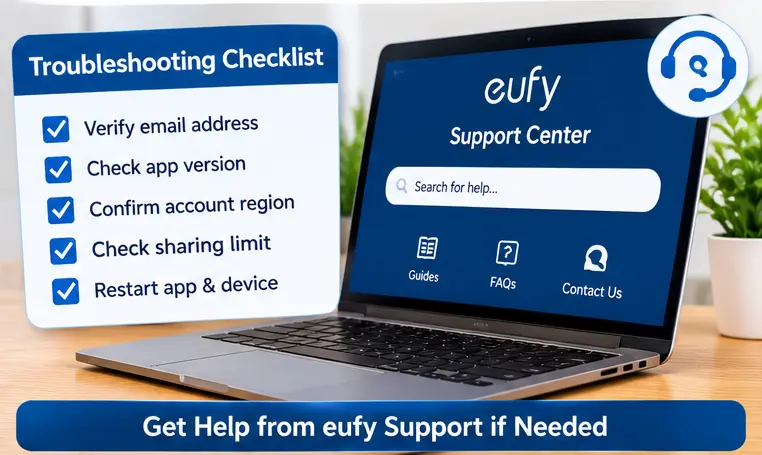
Sometimes an invitation does not arrive, the recipient cannot accept it or the shared camera does not appear in their app. Check the following issues before repeating the sharing process.
1. Verify the Recipient’s Email Address
Make sure the invitation was sent to the exact email address associated with the recipient’s Eufy account.
Even a small spelling mistake or unwanted space can cause problems.
If necessary, cancel the incorrect invitation and send another one using the correct address.
2. Make Sure the Recipient Is Logged In
The recipient should sign in to the Anker Eufy app using the account that received the invitation.
Ask them to refresh the app and check for pending invitations.
3. Check the Shared-Account Limit
Eufy’s support documentation currently states that a device can be shared with up to five authorized users. The limit or sharing behavior may vary across products and app versions, so check the invitation screen if you have reached the sharing limit.
Remove old shared accounts that no longer need access.
4. Check the Account’s Region or Login Environment
Eufy’s troubleshooting guidance says that the owner’s account and the shared account may need to use the same login environment or region.
Check the region settings in the app for both accounts if the invitation is not working.
5. Update the Anker Eufy App
An outdated app may display different menu names or experience problems with invitations.
Update the app on both smartphones, close it completely, reopen it and try the sharing process again.
6. Check Two-Factor Authentication Only if Support Recommends It
Some older Eufy troubleshooting guidance mentions two-factor authentication as a possible cause of sharing problems. However, disabling two-factor authentication reduces account security. Do not switch it off as a routine troubleshooting step. Contact Eufy support first and follow its current instructions for your specific account and product.
Troubleshooting Table
| Sharing problem | Possible cause | Recommended solution |
| Invitation is not received | Incorrect email address | Verify the recipient’s registered email |
| Invitation does not appear | Recipient is logged into another account | Sign in with the invited account and refresh the app |
| Sharing limit reached | Too many shared accounts | Review and remove accounts that no longer need access |
| Camera does not appear | Invitation not accepted or app not refreshed | Accept the invitation and reopen the device list |
| Invitation fails repeatedly | Region or login-environment mismatch | Check account region settings |
| Sharing menu is missing | Different app version or device interface | Update the app and check the model’s manual |
| Guest cannot change settings | Normal permission restriction | Review whether Admin access is actually required |
Check our blog on eufy camera offline troubleshooting.
How to Keep Your Shared Eufy Camera Access Secure
Security is important when sharing cameras because the live feed may show private areas of your home.
Follow these practices:
- Use individual accounts: Every family member or guest should use their own Eufy account instead of sharing your password.
- Give only necessary permissions: Guest access is a sensible starting point when the other person only needs routine viewing.
- Review shared users regularly: Remove people who no longer need access.
- Protect your account: Use a strong, unique password and keep available account-security features enabled.
- Be careful with camera placement: Share only cameras that the recipient is authorized to view.
- Keep the app updated: Install official updates to benefit from supported security and compatibility improvements.
How to Contact the Official Eufy Support Website
If camera sharing still does not work after checking the email address, account, region, invitation status and app version, contact Eufy’s official support team.
Use the official website:
Eufy Support Center: https://service.eufy.com/
You can search for product-specific guides, camera troubleshooting instructions, manuals and customer-service options.
For security camera and appliance assistance, Eufy lists support@eufy.com as an official support email.
When contacting support, provide your camera model, app version, account region and a description of the invitation problem. Avoid sending your password or other sensitive account credentials.
Frequently Asked Questions
1. How do I share my Eufy camera with family members?
Open the Anker Eufy app, navigate to Share Devices or Family & Guests, select Share Home or Share Device and tap Invite. Choose the appropriate permission, enter the family member’s Eufy account email and send the invitation. The recipient must accept it in their app.
2. Can I share my Eufy camera with someone who does not have an account?
The recipient needs an Eufy account to accept the shared-camera invitation. Ask them to install the Anker Eufy app and create an account before sending the invitation.
3. Can I share only one Eufy camera instead of all my cameras?
Yes, on supported app versions you can use Share Device to select an individual camera rather than sharing the entire home. Check the device-sharing options available in your app.
4. What is the difference between Guest and Admin access?
Guest access is generally intended for people who need to view the camera and use selected features. Admin access provides broader control over settings and security functions. Exact permissions depend on the camera and app version.
5. How many people can access one Eufy camera?
Eufy’s support documentation currently states that each device can be shared with up to five authorized users. Check the app for the limit applicable to your specific product and account.
6. Why is my family member not receiving the Eufy invitation?
Check that you entered the email address associated with their Eufy account. Ask them to sign in to the correct account, refresh the app and check pending invitations. Also verify the account region and sharing limit.
7. Can I remove a family member from shared camera access?
Yes. Open the sharing-management section in the app, locate the shared user and use the available remove or revoke option. The recipient should refresh their app after access is removed.
Conclusion
Sharing Eufy camera access with family or guests is straightforward when you use the official Anker Eufy app. The owner can invite another account through Share Devices or Family & Guests, choose the appropriate access level, and let the recipient accept the invitation.
Use Share Device when someone needs access to a specific camera, and consider Share Home when broader access to eligible household devices is appropriate. Choose guest permissions for routine viewing and reserve admin access for trusted people who genuinely need additional control.
If sharing fails, check the recipient’s email, account login, region, eufy security app login version, and shared-user limit. For unresolved problems, visit the official Eufy Support Center at https://service.eufy.com/.
Independent-Support Disclaimer: This article is an independent informational guide and is not affiliated with, sponsored by or endorsed by Eufy or Anker. App interfaces and sharing permissions may differ by product, region, and software version. Always refer to the official documentation for your camera.