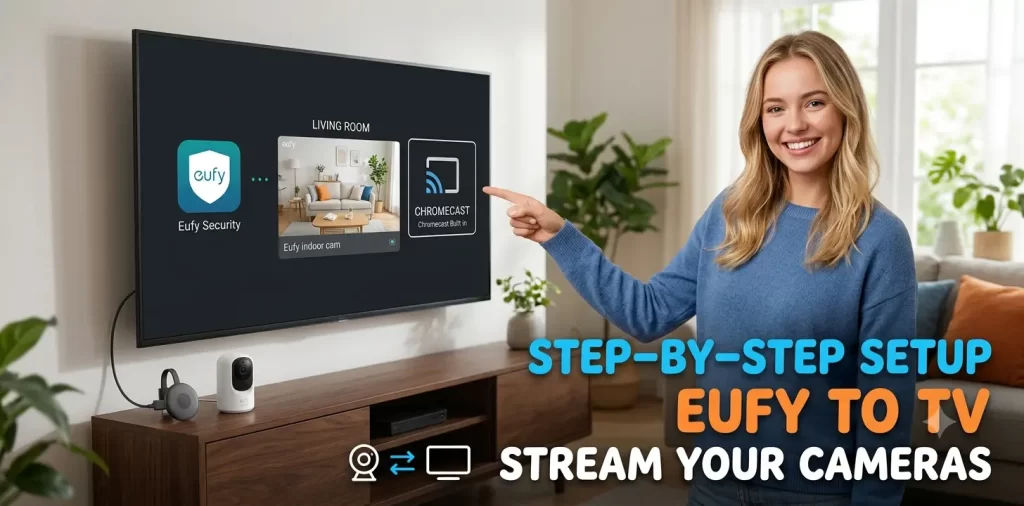
Want to watch your Eufy security camera on a bigger screen? Learning how to connect Eufy camera to Chromecast can make live monitoring much easier, especially when you want to check your front door, driveway, baby room or backyard without constantly using your phone.
Eufy cameras can work with Google Assistant and Google Home on supported models, allowing compatible camera feeds to be displayed through Chromecast, Google TV, Google TV Streamer or other Google Cast-enabled devices. However, compatibility is model-specific, so it is important to check your particular Eufy camera before assuming every feature is available. For example, Eufy currently lists the SoloCam S340 as supporting streaming to Google Chromecast.
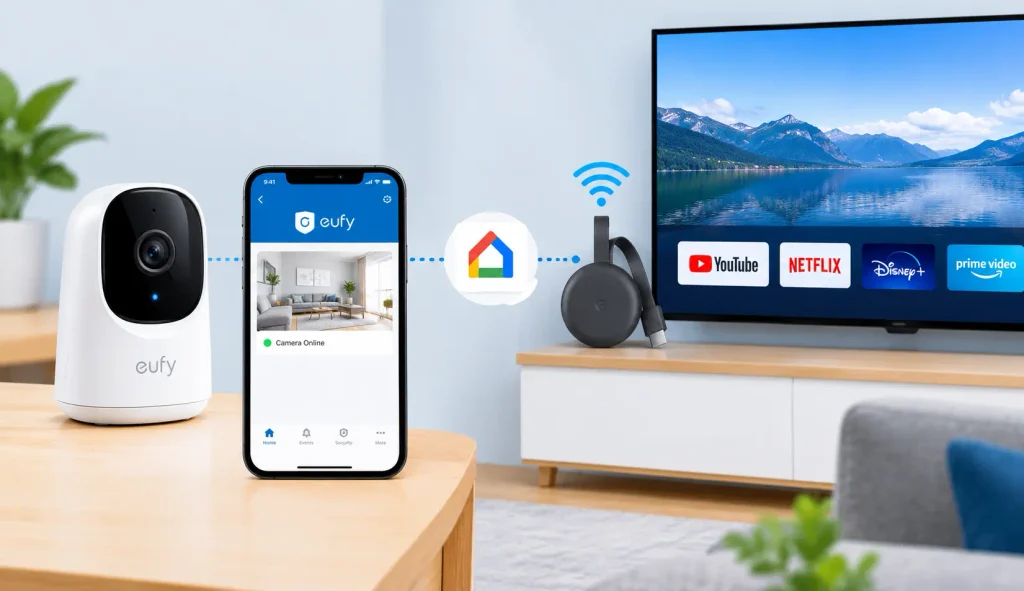
To connect Eufy camera to Chromecast, first set up the camera in the Eufy Security app, connect Chromecast or Google TV to the same home network and link your supported Eufy camera service with Google Home. Once connected, you can use Google Assistant commands such as “Show [camera name] on [TV name]” when the camera and display support the feature.
Important: Not every Eufy camera has identical Google Home or Chromecast support. Always check the specifications for your exact model before troubleshooting a connection that may not be supported.
Can You Connect an Eufy Camera to Chromecast?
Yes, supported Eufy cameras can be viewed through Chromecast or Google Cast-compatible devices, but the exact setup depends on the Eufy camera model and the Google device you are using.
Google’s current guidance says third-party security cameras need to be compatible with Google Home before they can be streamed to Google streaming devices. Google recommends checking the device’s compatibility through the Google Home app or by looking for a compatible/Works with Google designation.
Eufy also confirms Chromecast support for certain current camera models. For example, the SoloCam S340 supports streaming to Google Chromecast and Alexa Echo Show.
This means there are several possible setups:
- Eufy camera → Google Home → Chromecast
- Eufy camera → Google Assistant → Google TV
- Eufy camera → Google Cast-compatible TV
- Eufy camera → phone → supported casting or screen-mirroring method
The first three options are generally preferable when supported because you do not have to keep your phone screen active during viewing.
Eufy Camera and Chromecast Compatibility
Before you start, check whether your camera supports Google Assistant, Google Home or Chromecast streaming.
| Device or Method | Eufy Camera Support | What It Means |
| Eufy Security app | Yes, for supported Eufy cameras | Used for camera setup and live viewing |
| Google Home | Model dependent | Used to link compatible third-party devices |
| Google Assistant | Model dependent | Can provide voice-based camera viewing |
| Chromecast | Model dependent | Can display supported camera streams |
| Google TV / Google TV Streamer | Model and integration dependent | Can act as a Google Cast display |
| Standard smart TV without Google Cast | Not automatically supported | Requires another supported viewing method |
If your Eufy camera does not appear as a compatible device in Google Home, do not assume the Chromecast itself is faulty. The limitation may be related to the camera model or its current integration.
What You Need Before Connecting Eufy Camera to Chromecast
Getting the basics ready first can save you from repeatedly restarting devices later.
You should have:
- A compatible Eufy security camera.
- The Eufy Security app installed on your phone.
- A working Eufy account.
- A Chromecast, Chromecast with Google TV, Google TV Streamer or compatible Google Cast TV.
- The Google Home app.
- A Google account.
- A stable Wi-Fi connection.
- The Eufy camera already configured and online.
Google recommends setting up the security camera through the manufacturer’s app before adding a compatible third-party camera to Google Home. Your Google streaming device should also be configured before attempting to stream the camera.
Quick Preparation Checklist
| Requirement | What to Check |
| Eufy camera | Camera is powered on and online |
| Eufy Security app | Latest available version is installed |
| Google Home | Signed in to the correct Google account |
| Chromecast | Set up and connected to the TV |
| Wi-Fi | Camera and streaming devices have reliable connectivity |
| Camera compatibility | Your exact Eufy model supports the required Google feature |
| Camera name | Use a simple, recognizable name such as “Front Door” |
If your camera has not been configured yet, complete the Eufy Camera Setup process before trying to connect it to Chromecast.
How to Connect Eufy Camera to Chromecast
Once your camera is working correctly in the Eufy Security app, you can move on to the Google Home and Chromecast setup.
Step 1: Set Up Your Chromecast
Start by making sure your Chromecast or Google TV device is correctly connected to your television.
For a traditional Chromecast:
- Plug the Chromecast into an available HDMI port on the TV.
- Connect the Chromecast to power.
- Change the TV input to the HDMI port being used.
- Open the Google Home app on your phone.
- Follow Google’s setup instructions to configure the Chromecast.
For Chromecast with Google TV, the setup process includes connecting the device to HDMI, powering it on, pairing the remote and completing setup through Google Home or the TV interface. Google also recommends keeping the streaming device and camera on the same Wi-Fi network when setting up compatible security camera streaming.
Step 2: Check Your Eufy Camera in the Eufy Security App
Before involving Google Home, confirm that the camera itself works normally.
Open the Eufy Security app and check:
- The camera appears in your device list.
- The camera is online.
- Live video loads correctly.
- The camera has a recognizable name.
- The Eufy account is signed in correctly.
- There are no pending camera setup or network errors.
- Try opening the live view for at least a few seconds.
If the camera is already offline, Chromecast will not be able to display its live feed. Fix the Eufy camera connection first. You can also review our guide on Eufy Camera Keeps Going Offline if the camera repeatedly loses its connection.
Step 3: Open Google Home
Open the Google Home app on your phone. Make sure you are using the Google account associated with your Chromecast or Google TV device. Then check whether the Eufy camera or Eufy service is already visible.
Google’s current process for compatible third-party devices is:
- Google Home → Add → Device → Link apps or services
The exact wording can vary slightly by app version and device. Google says this is where compatible third-party smart-home services can be linked.
Step 4: Link Your Eufy Account
If Eufy is available as a supported service in your Google Home setup, select it and follow the sign-in prompts.
You may be asked to:
- Choose the Eufy service.
- Sign in to your Eufy account.
- Allow Google Home to access supported devices.
- Select the home where the camera should appear.
- Assign the camera to a room.
- Use the same Eufy account that contains the camera you want to view.
If you have multiple homes, rooms or cameras, take a moment to assign everything correctly. This makes voice commands much easier later.
Step 5: Give the Camera a Simple Name
A short camera name makes Google Assistant commands easier to understand.
Good examples include:
- Front Door
- Backyard
- Garage
- Driveway
- Baby Room
- Living Room
Avoid names that are unnecessarily long or contain confusing numbers.
For example, saying:
“Hey Google, show Front Door on Living Room TV.”
is easier than trying to remember a long device name.
Google’s supported camera commands include requests such as “Show [camera name]” and “Show [camera name] on [Chromecast device name].”
Step 6: Sync Your Devices
After linking Eufy with Google Home, allow the app time to discover the available devices.
If the camera does not directly appear, you can try syncing your devices through Google Assistant.
You can also close and reopen Google Home after linking the service.
If your Eufy camera appears in Google Home but cannot stream, continue with the troubleshooting section below rather than repeatedly unlinking and reconnecting accounts.
Step 7: Try a Google Assistant Voice Command
Once everything is linked, try a simple command.
For example:
“Hey Google, show Front Door on Living Room TV.”
You can replace “Front Door” with the actual camera name and “Living Room TV” with the name assigned to your Chromecast or Google TV device.
Google documents several supported camera-streaming commands, including:
- “Show [camera name].”
- “What’s on [camera name]?”
- “[Camera name] on [Chromecast device name].”
- “Play [camera name] on [Chromecast device name].”
- “Show [camera name] on [Chromecast device name].”
If the camera and integration are compatible, the live stream should appear on the selected display.
How to Cast Eufy Camera From Your Phone to TV
Another option is to use your phone as the starting point for viewing the camera on your TV. This can be useful when you do not want to set up a full Google Assistant workflow or when your Eufy app provides a compatible casting option.
First, open the Eufy Security app and start the camera’s live view. If a supported cast option is available, select your Chromecast or compatible Google Cast device.
Your phone and Chromecast should usually be connected to the same Wi-Fi network for standard casting. Google also states that the mobile device and Google streaming device should be on the same Wi-Fi network when casting from supported apps.
Casting Methods Compared
| Method | Main Requirement | Best Use |
| Google Assistant | Compatible Eufy camera + Google integration | Hands-free viewing |
| Google Home | Supported Eufy integration | Managing compatible smart-home devices |
| Eufy app casting | Supported casting feature | Quick viewing from phone |
| Screen mirroring | Compatible phone and TV/Chromecast | When direct casting is unavailable |
Keep in mind that casting and screen mirroring are not exactly the same thing.
How to View an Eufy Camera on Google TV
If you have Chromecast with Google TV or another compatible Google TV setup, you can use it as the display for a supported Eufy camera.
First, make sure the Eufy camera and Google TV device are online.
Then:
- Open Google Home on your phone.
- Confirm the correct Google account is selected.
- Confirm the Chromecast or Google TV device appears in your Home.
- Confirm your compatible Eufy camera is linked.
- Give the TV and camera clear names.
- Try a Google Assistant command.
For example:
- “Hey Google, show Backyard on Living Room TV.”
Google’s current streaming guidance supports compatible third-party security cameras on Chromecast, Google TV Streamer and devices that work with Google Cast.
However, Google also makes clear that third-party camera compatibility must be checked rather than assumed. If the camera is not supported, Google Home may not provide the expected live-stream functionality.
Eufy Camera Not Showing on Chromecast? Try These Fixes
If your Eufy camera on Chromecast is not working, start with the simplest checks.
1. Check Whether the Camera Is Supported
This is the first thing to verify. Not every Eufy camera has exactly the same Google integration. Eufy’s current product information specifically lists Chromecast streaming for supported models such as the SoloCam S340.
If your model does not support the required Google feature, changing Wi-Fi settings or reinstalling Google Home will not add that functionality.
2. Check the Camera’s Internet Connection
Open the Eufy Security app.
If live video does not load there, fix the camera connection first.
Restart:
- Eufy camera
- HomeBase, if your system uses one
- Router
- Chromecast or Google TV
Wait for each device to reconnect before testing again.
3. Confirm the Same Wi-Fi Network
Your phone, Chromecast and camera should have reliable access to the same home network where the integration requires local discovery or casting.
Google specifically recommends connecting compatible streaming devices and security cameras to the same Wi-Fi network.
If you have separate 2.4 GHz and 5 GHz network names, check which network each device is using.
4. Check Google Home
Open Google Home and verify that:
- You are using the correct Google account.
- Chromecast is online.
- The TV has the correct room assignment.
- Eufy is linked.
- The camera appears in the device list.
If the camera is missing, remove stale or duplicate device entries only if necessary, then reconnect the supported Eufy service.
5. Check Camera and TV Names
Voice commands depend heavily on device names. If your camera is called “Cam 01” and your television is called “TV,” try renaming them to something clearer.
For example:
Camera: Front Door
TV: Living Room TV
Then try:
“Hey Google, show Front Door on Living Room TV.”
6. Update the Apps
Check for available updates for:
- Eufy Security
- Google Home
- Google TV system software
- Chromecast firmware
Older software can sometimes cause integration or discovery problems.
7. Restart Chromecast
If the Eufy camera works on your phone but not on the TV, restart the streaming device.
For Chromecast with Google TV, you can restart the device through its settings or power-cycle it.
Google also recommends rebooting Chromecast as an initial troubleshooting step when Chromecast setup or operation is not working correctly.
8. Test Another Compatible Display
If possible, try another Google Cast-compatible display. This helps identify whether the problem is related to:
- Eufy camera compatibility
- Google account linking
- Chromecast
- TV configuration
- Network connectivity
Eufy Camera Chromecast Troubleshooting Table
| Problem | Likely Cause | What to Try |
| Camera missing in Google Home | Integration or compatibility issue | Check Eufy model support and relink the service |
| Camera works on phone but not TV | Casting/display issue | Restart Chromecast and check Google Home |
| “Camera unavailable” | Camera offline | Open Eufy app and restore camera connection |
| Voice command fails | Device name/account issue | Rename devices and verify Google account |
| Chromecast cannot find device | Network problem | Put devices on the same Wi-Fi |
| Video keeps buffering | Weak or congested network | Improve Wi-Fi and restart router |
| Google Home sees camera but cannot stream | Feature/model limitation | Verify current Eufy and Google compatibility |
Eufy Camera Chromecast Connection vs. Screen Mirroring
It is easy to confuse casting with screen mirroring, but they work differently.
With Chromecast casting, a compatible app or smart-home integration sends the requested content to the streaming device. Your phone can often act as a controller rather than continuously displaying the video.
With screen mirroring, your phone’s screen is duplicated on the television.
Casting vs. Screen Mirroring
| Feature | Chromecast/Casting | Screen Mirroring |
| Phone screen required | Usually not continuously | Yes |
| Phone can be used for other tasks | Usually easier | Usually limited |
| Setup | Requires compatible app/integration | Requires compatible mirroring |
| Voice control | Possible with Google integration | Usually limited |
| Best for | Regular TV viewing | Temporary viewing |
| App compatibility | Must be supported | Depends on phone and receiver |
If your Eufy camera officially supports Chromecast or Google integration, direct casting is generally more convenient than keeping your phone mirrored.
If direct casting is not available, screen mirroring can still be useful as a temporary alternative, provided your phone and TV/streaming device support it.
Which Eufy Cameras Work With Chromecast?
This is one of the most significant parts of the setup. Do not assume that every Eufy camera automatically works with Chromecast simply because it uses the Eufy Security app. Eufy’s current product information specifically says that SoloCam S340 supports streaming to Google Chromecast.
Eufy also documents Google Assistant support for other products, but the exact smart-home capabilities can vary by model and firmware. For example, Eufy’s current support information for eufyCam S3 Pro lists Google Assistant as supported.
Therefore, before buying or troubleshooting a camera, check the exact model’s specifications.
What to Check on Your Eufy Camera
| Check | Why It Matters |
| Exact model number | Features vary between Eufy camera families |
| Google Assistant support | Indicates Google smart-home compatibility |
| Chromecast support | Determines whether direct Chromecast streaming is available |
| Google Home compatibility | Helps determine whether the camera can be linked to Google Home |
| Firmware version | Newer firmware may include compatibility changes |
| Eufy support documentation | Provides the most reliable model-specific information |
If you are buying a new camera specifically for TV viewing, check Chromecast/Google compatibility before purchasing rather than relying on general Eufy branding.
What to Do If Chromecast Doesn’t Work With Your Eufy Camera
Sometimes everything appears correctly configured, but the camera still refuses to appear on Chromecast. Start by determining whether the issue is compatibility or connectivity.
If the camera works perfectly in the Eufy Security app but cannot be linked to Google Home, check whether the exact camera model supports Google integration.
Next, If the camera appears in Google Home but cannot stream, check the network, Google account, Chromecast status and camera firmware. If the camera does not work even in the Eufy app, troubleshoot the camera first.
You can also try the following sequence:
- Open Eufy Security.
- Confirm live video works.
- Restart the Eufy camera.
- Restart Chromecast.
- Restart the router.
- Open Google Home.
- Verify the correct Google account.
- Check that Chromecast is online.
- Check that Eufy is still linked.
- Test the voice command again.
Google recommends contacting the third-party camera manufacturer when a compatible third-party security camera cannot stream or reports itself as unavailable.
If your Eufy camera has other symptoms, such as a Eufy Camera Blinking Red Light, fix that camera-specific problem before working on Chromecast.
Can You Use Google Assistant to Show Eufy Camera on TV?
On supported Eufy cameras and compatible Google setups, yes.
The basic idea is:
- Eufy Camera → Eufy Security → Google Home/Assistant → Chromecast or Google TV → TV
Once configured, you can use a command such as:
- “Hey Google, show Front Door on Living Room TV.”
Google’s current documentation lists commands for starting a security camera stream on a Chromecast or other compatible Google streaming device.
The command may fail if:
- The camera is offline.
- Chromecast is offline.
- The camera is not supported.
- The wrong Google account is being used.
- The camera or TV has an unclear device name.
- The Eufy service is not correctly linked.
- There is a temporary Google or Eufy integration problem.
Frequently Asked Questions
Some Eufy cameras are compatible with Chromecast, but support depends on the specific model and its current Google integration. Eufy currently lists models such as the SoloCam S340 as supporting streaming to Google Chromecast. Check your exact camera’s specifications before setting up Chromecast.
Yes, a compatible Eufy camera can be viewed on a TV through supported Chromecast, Google TV, Google Cast or other smart-home integrations. Another option is screen mirroring from a phone. The available method depends on your Eufy camera model and television or streaming device.
First, set up the camera in the Eufy Security app. Then configure Chromecast or Google TV in Google Home and link the supported Eufy service. If the camera supports Google streaming, you can use a command such as “Show Front Door on Living Room TV.” Google recommends that the camera and streaming device use the same Wi-Fi network.
Some Eufy cameras support Google Home or Google Assistant integration. However, features differ between models. Eufy’s current product information lists Google Assistant support for products such as eufyCam S3 Pro, while specific Chromecast streaming support should be verified for the individual camera.
Yes, if your Eufy camera supports the required Google integration and your Google TV or Chromecast device is compatible. Set up the camera in Eufy Security, link the supported service through Google Home and assign clear names to the camera and TV. You can then try a Google Assistant camera-streaming command.
The most common possibilities are an unsupported Eufy model, an offline camera, incorrect Google account, network problems, outdated software or an incorrectly linked Eufy service. First confirm that live video works in the Eufy Security app. Then check Chromecast, Google Home, Wi-Fi, account linking and model compatibility.
Final Thoughts
Connecting an Eufy camera to Chromecast can turn your TV into a convenient live-monitoring screen, but the most important step is checking compatibility first.
The basic setup is straightforward: get the Eufy camera working in the Eufy Security app, configure Chromecast or Google TV, link the supported Eufy service with Google Home and use a clear camera name for voice commands.
If your Eufy camera on Chromecast does not work, do not instantly reset everything. First check whether the camera is supported, whether it is online in the Eufy app, whether Chromecast is connected to the correct network and whether Google Home is using the correct account.
For supported models, this setup can make it much easier to view Eufy camera on TV without repeatedly opening the camera app on your phone. Eufy’s current documentation confirms Chromecast streaming for selected models, while Google recommends verifying third-party camera compatibility through Google Home.