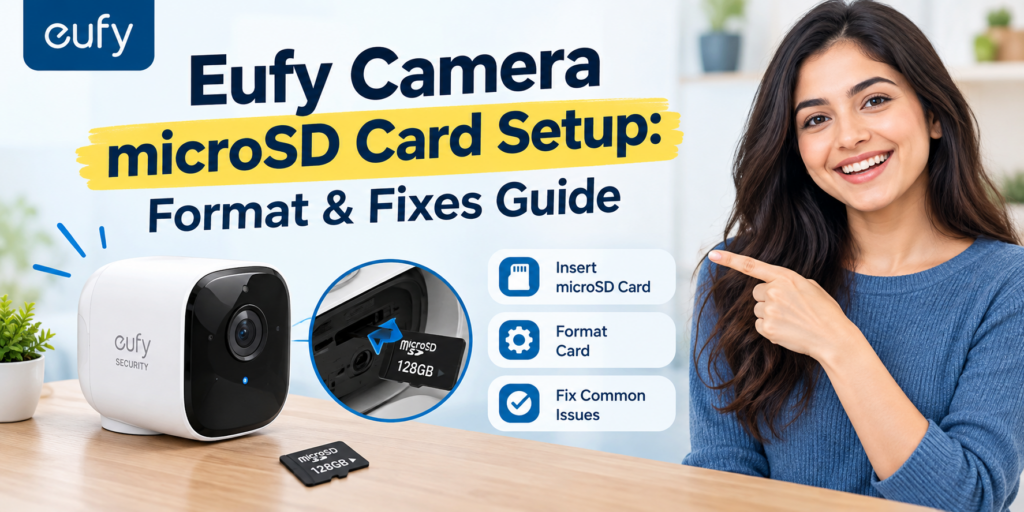
Insert a compatible Class 10 microSD card, open the Eufy Security app and format the card from the camera’s storage settings before recording. If your Eufy SD card is not working, check compatibility, reinsert the card, update firmware and reformat or replace the card.
A microSD card is one of the easiest ways to add Eufy camera local storage. It can let your camera save recordings without depending only on cloud storage.
But there is one important point.
Not every Eufy camera supports the same microSD card size or storage method. Some models support a card directly inside the camera. Others use HomeBase for storage. Always check the storage specifications for your exact Eufy model before buying a card.
If you are searching for “eufy camera microSD card setup,” “eufy SD card not working,” or “why is my Eufy camera not recording to SD card?”, this guide walks you through the complete process.
Important: Eufy has many camera models. Card capacity, supported formats and storage features can differ between models. For example, some Eufy cameras officially support up to 128GB, while newer products may support different capacities. Always check your specific model.
Which microSD Cards Are Compatible with Eufy Cameras?
The first step is choosing a card that your camera supports. For many Eufy cameras, Eufy recommends a Class 10 microSD card. Several camera models support cards from 16GB to 128GB. However, this is not a universal limit for every Eufy product.
So, do not buy a 256GB or 512GB card simply because it is larger. Your camera may not support it.
A simple compatibility checklist
| Feature | What to look for |
| Card type | microSD or microSDXC, depending on the camera |
| Speed | Class 10 or higher where supported |
| Capacity | Check your exact Eufy model |
| Brand | Use a reliable, genuine memory-card brand |
| Condition | New or healthy card with no existing errors |
| Usage | Designed for regular video recording |
For security cameras, the card is written to again and again. A cheap or fake card can cause recording problems. If your camera supports 128GB, a good-quality 64GB or 128GB card is often a practical choice. Do not exceed the maximum capacity listed for your camera.
How much storage do you need?
Your storage requirement depends on resolution and recording mode. Higher video quality uses more space. Continuous recording also uses much more space than short motion clips.
| Card size | General use | Continuous recording |
| 32GB | Suitable for lighter recording | Limited recording time |
| 64GB | Good for moderate use | More recording time |
| 128GB | Useful for heavier recording | Longer continuous recording |
| 256GB+ | Only if your model officially supports it | Check model limits first |
These are general guidelines, not guaranteed recording times. Actual storage depends on resolution, compression, activity and your camera settings.
“What size microSD card does my Eufy camera support?”
The safest answer comes from your camera’s exact model documentation.
Where Is the microSD Card Slot on Your Eufy Camera?
The slot location depends on the camera. On many indoor and wired Eufy cameras, the microSD slot is located on the camera body. On some pan-and-tilt models, the lens may need to be moved to reveal the slot.
Some Eufy security systems store footage on a HomeBase instead of putting the microSD card directly in the camera.
Before opening anything, check your model’s manual.
Quick location guide
| Eufy camera setup | Where storage may be located |
| Indoor Cam | Often directly in the camera |
| Wired Outdoor Cam | May have a microSD slot |
| Floodlight Cam | Some models support local microSD storage |
| EufyCam/HomeBase system | Storage may be handled by HomeBase |
| Newer Eufy systems | Storage options vary by model |
Do not force the card into a slot. If it does not slide in easily, stop and check the orientation.
How to Insert and Set Up a microSD Card in Your Eufy Camera
Once you have confirmed compatibility, setup is straightforward.
Step 1 – Power down the camera
If possible, turn the camera off before inserting or removing the card. This reduces the chance of corrupting data.
If your model has a removable power cable, disconnect it.
For battery-powered devices, follow the instructions in the product manual.
Step 2 – Insert the card correctly
Find the microSD slot. Look closely at the small diagram near the slot.
The metal contacts should face the direction shown by the camera’s marking or manual.
Do not push hard. The card should normally click into place.
Tip: The correct direction differs between Eufy models. Do not assume that the metal contacts always face up or down.
Step 3 – Power on and open the Eufy Security app
- Reconnect the camera to power.
- Open the Eufy Security app.
- Select your camera.
- Then open its settings.
The exact menu names can change with app versions and camera models, but look for options such as:
Camera Settings → Storage
or
Camera Settings → Storage Management
Step 4 – Confirm the app detects the card
If the card is recognized, you should see storage information in the app.
You may also see a prompt asking you to format the card.
If the app says No SD Card, SD card error or something similar, do not start recording yet.
Fix the detection problem first.
How to Format a microSD Card for Your Eufy Camera
Formatting prepares the card for use. It is one of the most important parts of eufy camera microSD card setup.
Why formatting in-app matters
If the Eufy app gives you a format option, use it.
The camera knows the storage setup it needs. Formatting through the Eufy Security app also helps the camera prepare the card for its recording system.
Some Eufy devices use encrypted storage, so you should not expect every card to work like a normal USB drive.
Format via Eufy Security App
The general process is:
- Open the Eufy Security app.
- Select your camera.
- Open Device Settings.
- Go to Storage or the storage-management section.
- Select the microSD card.
- Choose Format.
- Confirm the warning.
- Wait for the process to finish.
- Do not switch off the camera during formatting.
Format via computer: fallback method
Use a computer only when your camera’s instructions support it or when the Eufy app cannot format the card.
The required file system can vary by Eufy model. Some cameras use FAT32 or exFAT, while other products use their own storage preparation process.
So, do not blindly format every Eufy card as FAT32 or exFAT.
If the camera requires in-app formatting, format it again in the Eufy app after inserting it.
Warning: formatting erases all footage
Formatting deletes data on the card. If the card contains important recordings, save them first.
| Situation | What to do |
| Brand-new card | Format before recording |
| Card has old footage | Back it up first |
| App detects card and asks to format | Use the Eufy app |
| App cannot format card | Check compatibility and model instructions |
| Card repeatedly fails formatting | Test or replace the card |
Eufy SD Card Not Working – Common Causes
An eufy SD card not working problem can have several causes. It is not always a bad camera. The card itself may be incompatible, damaged, incorrectly inserted, too large or simply worn out.
Common causes
| Problem | Possible cause | What to try |
| No SD card detected | Card not seated correctly | Remove and reinsert |
| Format fails | Unsupported card or damaged card | Try a compatible card |
| Recording stops | Card full or failing | Check storage health |
| SD card error | File-system problem | Reformat |
| Random recording gaps | Card performance issue | Use a reliable Class 10 card |
| New card does not work | Unsupported capacity | Check model limit |
| Card worked before | Wear or corruption | Test and replace if needed |
A common mistake is buying the biggest card available. Bigger does not always mean compatible.
How to Fix an Eufy SD Card Corrupted Error
If your camera reports that the eufy SD card is corrupted, work through these steps.
Reformat the card
First, back up anything important. Then use the Eufy Security app to format the card. After formatting, allow the camera to record for a while.
Check the playback section later. If new footage appears normally, the problem may have been caused by a file-system issue.
Try the card in a different device to test it
Remove the card and test it using a computer or another compatible device. If the computer cannot read the card, the card may be damaged. If it works normally on the computer but fails in Eufy, compatibility becomes more likely.
Do not use a computer test as proof that the card is fully compatible with your Eufy camera.
Update camera firmware
Old firmware can cause compatibility or storage problems. Open the Eufy Security app and check whether a Eufy firmware update is available for your camera.
This is also useful when the card worked previously but stopped after a camera or app change.
Replace the card if errors persist
If the camera repeatedly shows:
- SD card error
- Read/write error
- Format failed
- Card corrupted
- Recording stopped
- Try a different, known-good compatible card.
If the second card works, the original card is likely the problem.
Eufy Camera Storage Card Not Recording – Troubleshooting Steps
Your card can be detected correctly but still fail to record. If your Eufy camera is not recording to SD card, check the following.
1. Check that recording is enabled
- Open the Eufy app.
- Check the camera’s security or recording settings.
- Make sure the selected mode is configured to record video.
A camera in a mode that does not record events will not save the clips you expect.
2. Check motion detection
If you expect motion clips, confirm that motion detection is enabled.
Also check:
- Motion sensitivity.
- Detection type.
- Activity zones.
- Security mode.
- Camera power status.
This is especially important if the camera sends a live view but does not save event clips.
Note: If Eufy camera is not detecting motion then you can check our troubleshooting blog.
3. Check the SD card status
Open the camera’s storage settings.
Look for:
- Card detected.
- Available space.
- Card capacity.
- Recording status.
- Format option.
4. Check whether the card is full
Some Eufy cameras use loop recording. This means older footage can be overwritten when the storage becomes full.
Other settings or products may behave differently. If your Eufy camera storage is full, check the model’s recording and overwrite behavior.
5. Check the recording mode
Continuous recording uses storage much quicker than event-only recording. For example, a camera recording 24/7 will fill a card much faster than a camera saving only short motion events.
6. Restart the camera
A simple restart can clear a temporary storage or software problem. After restarting, check the storage status again.
Troubleshooting checklist
| Check | What you want to see |
| Camera power | Camera is online |
| SD card | Card detected |
| Format | Card successfully formatted |
| Storage | Free space available |
| Recording | Recording is enabled |
| Motion | Motion detection is enabled if needed |
| Firmware | Camera is up to date |
| Playback | New clips are appearing |
How to Check microSD Card Storage Status in the Eufy App
The exact screen can vary between Eufy products and app versions.
Generally:
- Eufy Security app → Camera → Settings → Storage
Look for the card’s capacity and available space.
If you see the card listed but recording is not working, check your recording settings. If the card is not listed at all, focus on compatibility, insertion and card health.
A useful habit is to check your storage occasionally. Do not wait until you need an important recording.
microSD Card vs Cloud Storage on Eufy Cameras
Both local and cloud storage can have a place in a security setup. The right option depends on your camera model and what you want from your recordings.
| Feature | microSD/local storage | Cloud storage |
| Physical card required | Yes | No |
| Monthly subscription | Often not required for local recording | May require a plan |
| Internet dependence | Depends on camera features | Generally more dependent on internet |
| Physical storage | On card/device | Remote cloud servers |
| Capacity | Limited by supported storage | Depends on plan |
| Card failure risk | Yes | Different type of risk |
| Easy remote access | Usually through app | Usually through app |
Local storage can be attractive if you want to avoid relying only on a subscription.
However, a microSD card can fail. That is why important security footage should not be treated as permanently safe just because it is stored locally.
If your camera supports both local and cloud storage, check the exact recording behavior of your model.
Tips to Keep Your Eufy microSD Card Working Properly
A little maintenance can prevent many storage problems.
Use a reliable card
Avoid suspiciously cheap cards. Fake-capacity memory cards are a common problem in the wider memory-card market. Buy from a trusted seller.
Use the correct capacity
Always stay within your camera’s official limit. If your camera supports 128GB, do not assume a 512GB card will work.
Do not remove the card while recording
If the camera is writing data, removing the card can damage files. Stop recording or power down the device when the instructions require it.
Check storage occasionally
Open the Eufy app every so often.
Confirm that:
- The card is detected.
- Recent clips are being saved.
- Storage is available.
- No SD card warning is shown.
Update firmware
Firmware updates can include bug fixes and compatibility improvements. Use the Eufy app to check your camera’s firmware status. This is especially useful when you experience an Eufy SD card read/write error after a software update or camera change.
Replace an aging card
microSD cards have a limited write life. Security cameras can write much more data than phones or tablets because recording can happen every day.
If a card repeatedly becomes corrupted, fails formatting or produces recording gaps, replacement is usually more practical than repeatedly trying to repair it.
Quick Fix Table for Eufy SD Card Problems
| Your problem | First thing to try | If it still fails |
| Eufy does not detect SD card | Reinsert it | Check compatibility |
| Format fails | Format in Eufy app | Try another compatible card |
| SD card corrupted | Back up and reformat | Replace card |
| Camera stops recording | Check recording settings | Test another card |
| Card is full | Check overwrites settings | Increase supported capacity |
| Read/write error | Restart and reformat | Replace card |
| Motion clips missing | Check motion settings | Check security mode |
| Card worked before | Update firmware | Test a different card |
Frequently Asked Questions
What size SD card does Eufy support?
Eufy camera support depends on the model. Many Eufy cameras support microSD cards up to 128GB, while some newer products have different limits. Check your exact model before buying a card. Never assume that a larger card will work.
Can I use any microSD card in Eufy camera?
No. Your card must meet the camera’s supported capacity, type and speed requirements. Many Eufy models recommend Class 10 cards. A genuine, reliable card from a trusted seller is preferable for regular security-camera recording.
Why does my Eufy camera keep saying SD card error?
An SD card error can be caused by an incompatible card, incorrect insertion, corruption, unsupported capacity, formatting problems, card wear or firmware issues. Reinsert the card, check compatibility, update firmware and format it through the Eufy app.
Do I need to format a new SD card for Eufy?
Usually, you should format a new card before using it for recording if your camera provides a formatting option. Formatting prepares the card for the camera’s storage system. Remember that formatting deletes existing data, so back up important files first.
Final Thoughts
Eufy camera microSD card setup is usually simple. The most significant step is choosing the right card for your exact camera model. Start with a genuine, compatible microSD card. Insert it carefully. Let the Eufy Security app detect it. Then use the app’s storage settings to format the card when prompted.
If your eufy SD card is not working, do not immediately assume the camera is broken.
- Check the card size.
- Check the card type.
- Reinsert it.
- Format it.
- Update the firmware.
- Then test another compatible card.
For example, if your camera detects a new card but repeatedly reports a read/write error, I would first test a known-good compatible card rather than buying a new camera. If the second card works, you have a strong clue that the original card is the problem.